Parent Dashboard Guide
Everything you need to know about managing your family's WiFi rewards
📋 Quick Navigation
🏠 Dashboard Overview
When you log in, you'll see your family dashboard with collapsible sections for each feature. Click any section header to expand or collapse it.
Child Status Cards
At the top, you'll see a card for each child showing:
- Status: Their current internet access state
- Earned today: WiFi minutes earned from completed chores
- Used today: Minutes of WiFi time they've used
- Remaining: Minutes left to use today
- Streak: How many consecutive days they've completed chores
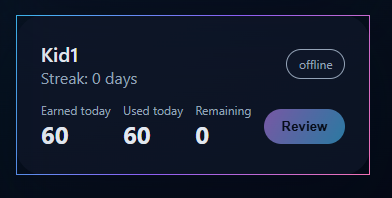
Example child card showing status and stats
Status Types
Online Internet access is active
Blocked Internet is blocked (no time remaining or manually blocked)
Pending Has submissions waiting for your review
Away Child is on custody schedule (blocking paused)
👧 Managing Children
Adding a Child
- Click "Add Child" to expand the section
- Enter the child's name
- Enter their age (optional)
- Create a 4-digit PIN they'll use to log in
- Click "Create Child"
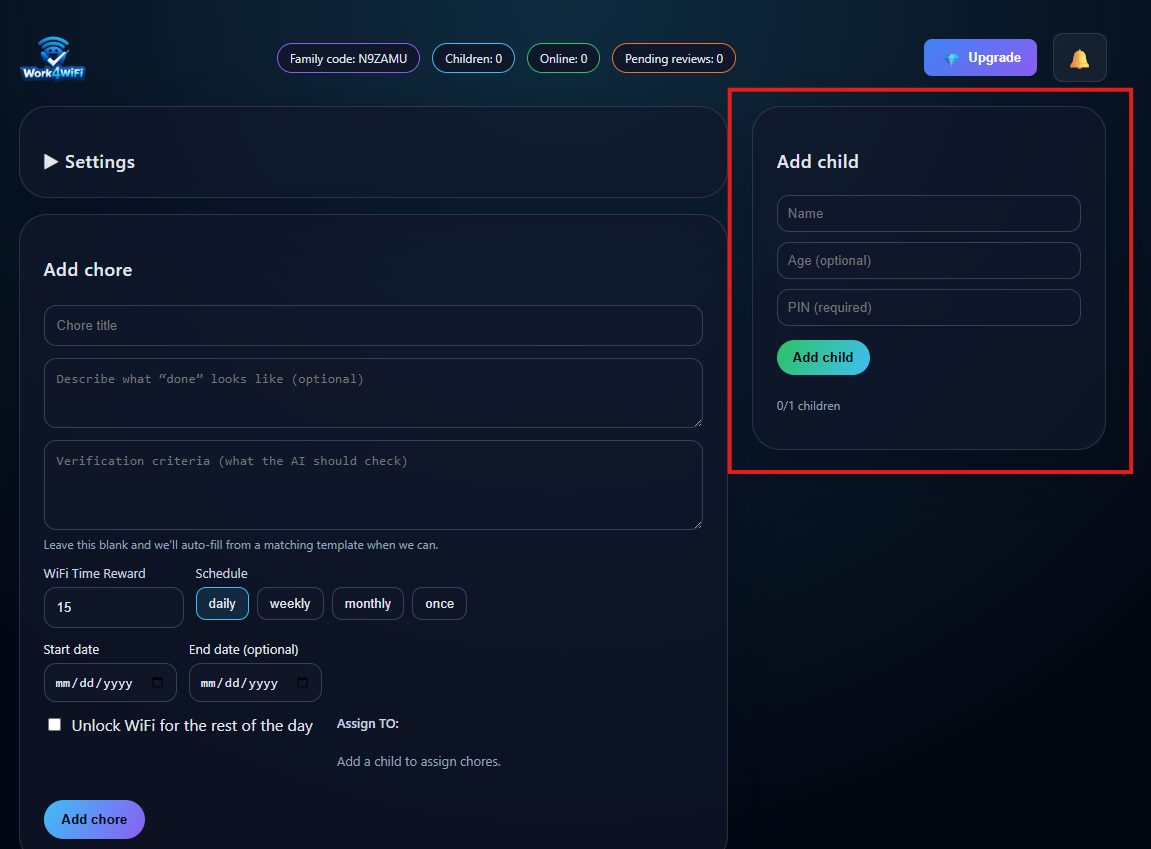
The Add Child form
Family Code
Your Family Code is shown at the top of the dashboard. Children need this code (plus their name and PIN) to log into the child app.
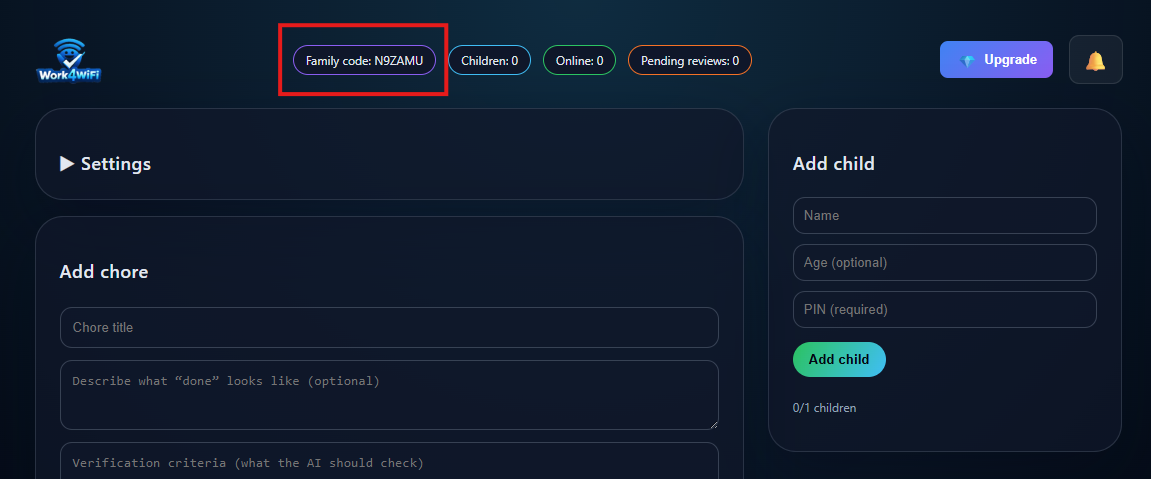
Your family code is displayed at the top
Editing a Child
Click on a child's name in the Child Stats section to:
- Change their name
- Update their PIN
- Set up custody schedules
✅ Creating & Managing Chores
Creating a Chore
- Click "Add Chore" to expand
- Enter a title (e.g., "Make your bed")
- Add a description of what needs to be done
- Define completion criteria - what the AI should look for in their photo
- Set the reward - WiFi minutes earned
- Assign to specific children or all children
- Click "Create Chore"
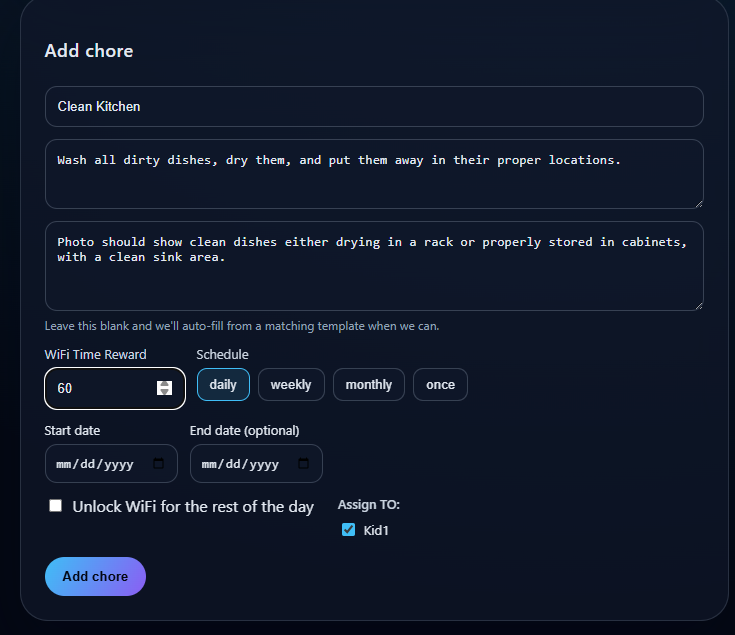
Creating a new chore with title, criteria, and reward
Chore Templates
We provide pre-made chore templates you can use with one click. These have optimized descriptions and criteria for accurate AI verification.
Scheduling Options
Daily
Chore appears every day
Weekly
Select specific days of the week
Monthly
Limit how many times per month
One-time
Appears once, then done
Managing Existing Chores
In the Chore Queue section, you can:
- Edit - Change title, criteria, or reward
- Reassign - Change which children see it
- Delete - Remove the chore entirely
📸 Reviewing Submissions
When a child submits a photo for a chore, the AI automatically verifies it based on your criteria.
AI Verification
- Auto-approved: If AI confidence is high, the chore is automatically approved and WiFi is granted
- Needs review: If AI is uncertain, you'll see it in "Pending Review"
- Rejected: If the photo clearly doesn't match, the child can retry
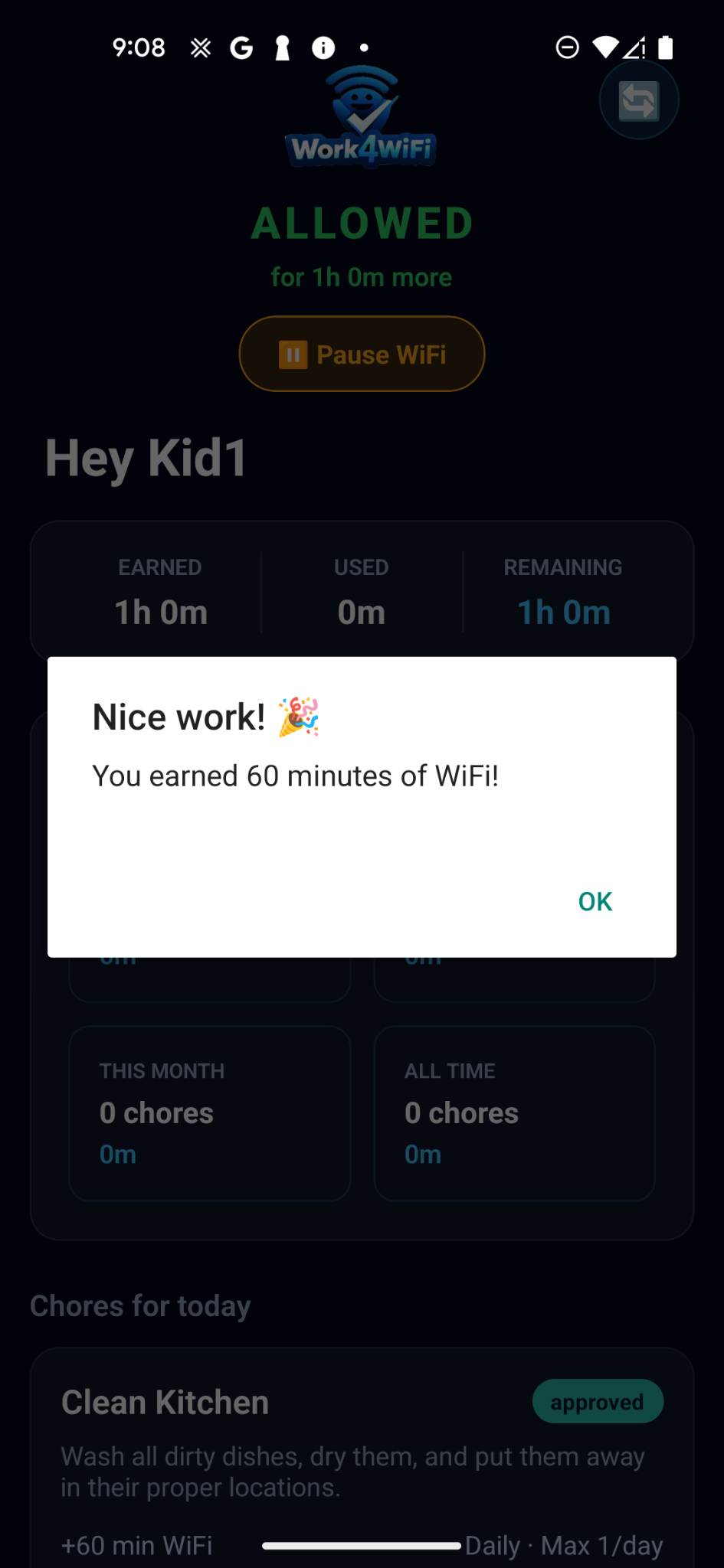
AI Auto-Approved
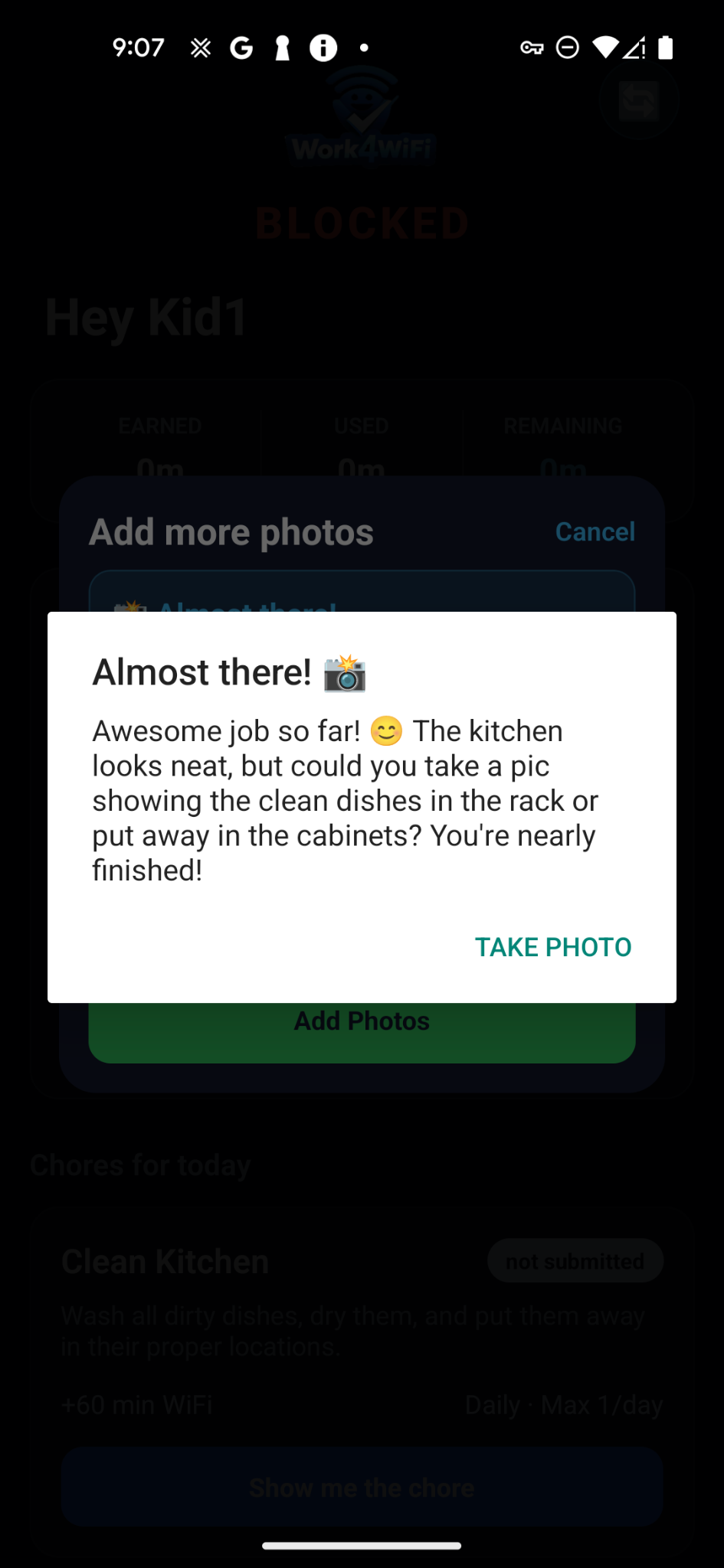
AI Needs Better Photo
Manual Review
Click "Review" on a child's card (or expand "Pending Review") to see submissions needing your attention:
- View the photo they submitted
- See what the AI detected
- Click ✓ Approve to grant the reward
- Click ✗ Reject to deny (they can resubmit)
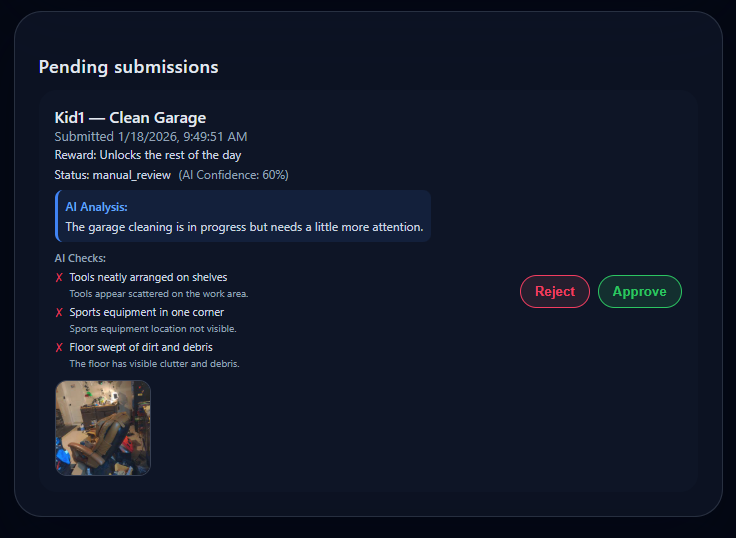
Reviewing a pending submission
Recent Submissions
Expand "Recent Submissions" to see a history of all submissions and their outcomes.
📶 WiFi Control
You have full control over each child's internet access, independent of their earned time.
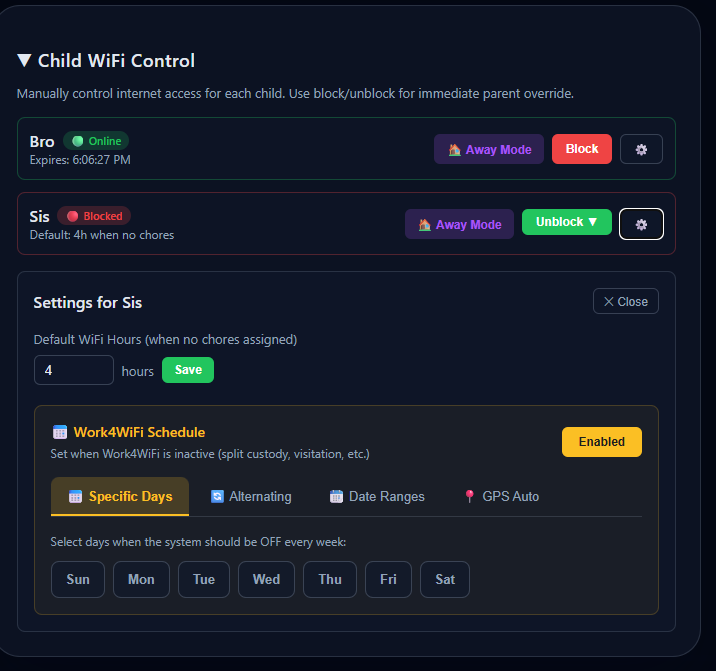
Block and unblock controls for each child
Instant Block
Click the Block button next to a child to immediately cut their internet access. Use this for:
- Dinner time
- Homework time
- When they need to get off their device NOW
Unblock Options
Click Unblock and choose how long:
Choose how long to grant bonus internet access
15 minutes
Quick access
1 hour
Extended time
2 hours
Longer session
Until midnight
Rest of the day
📅 Custody & Scheduling
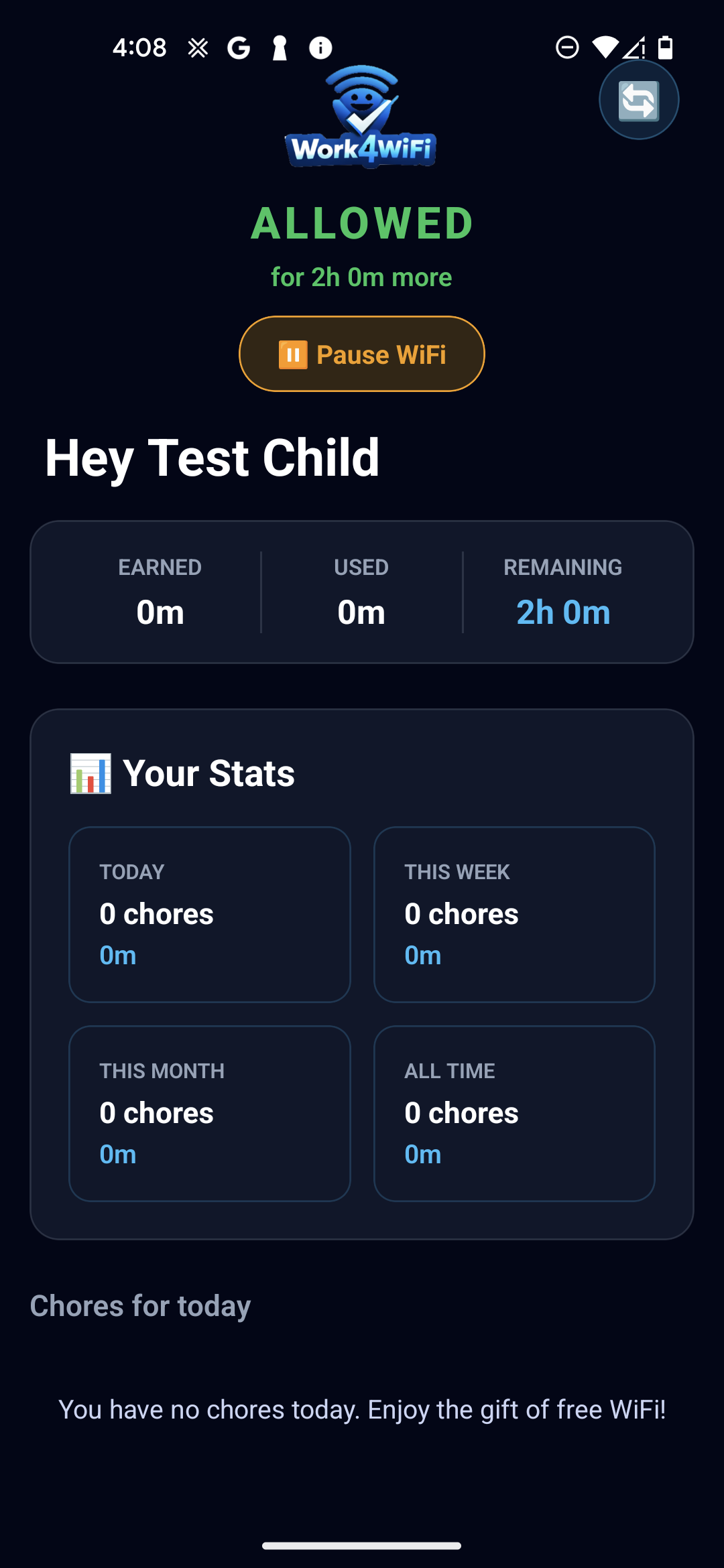
For co-parenting situations, you can set up schedules so blocking automatically pauses when kids are at the other parent's house.
Schedule Types
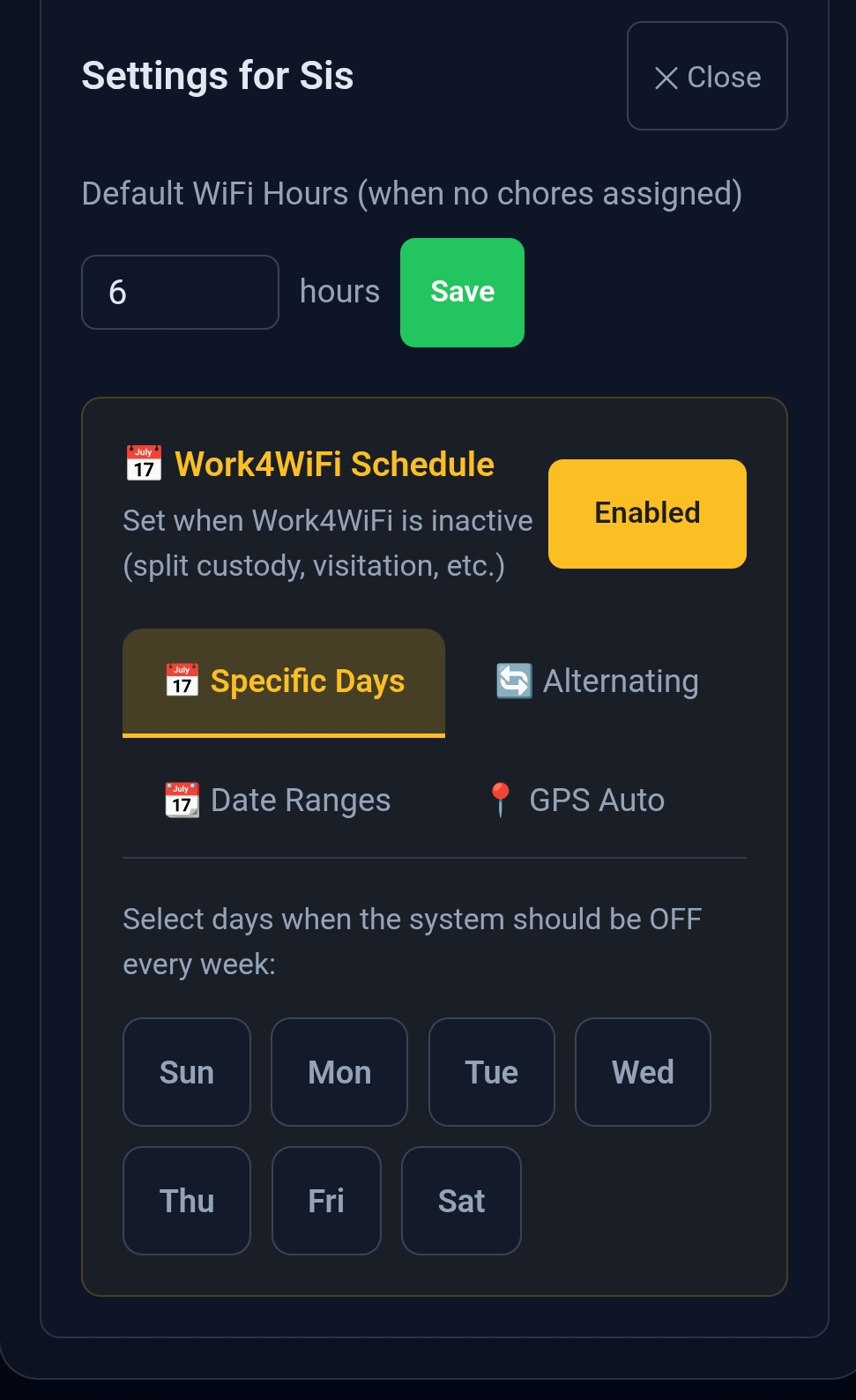
Days of Week
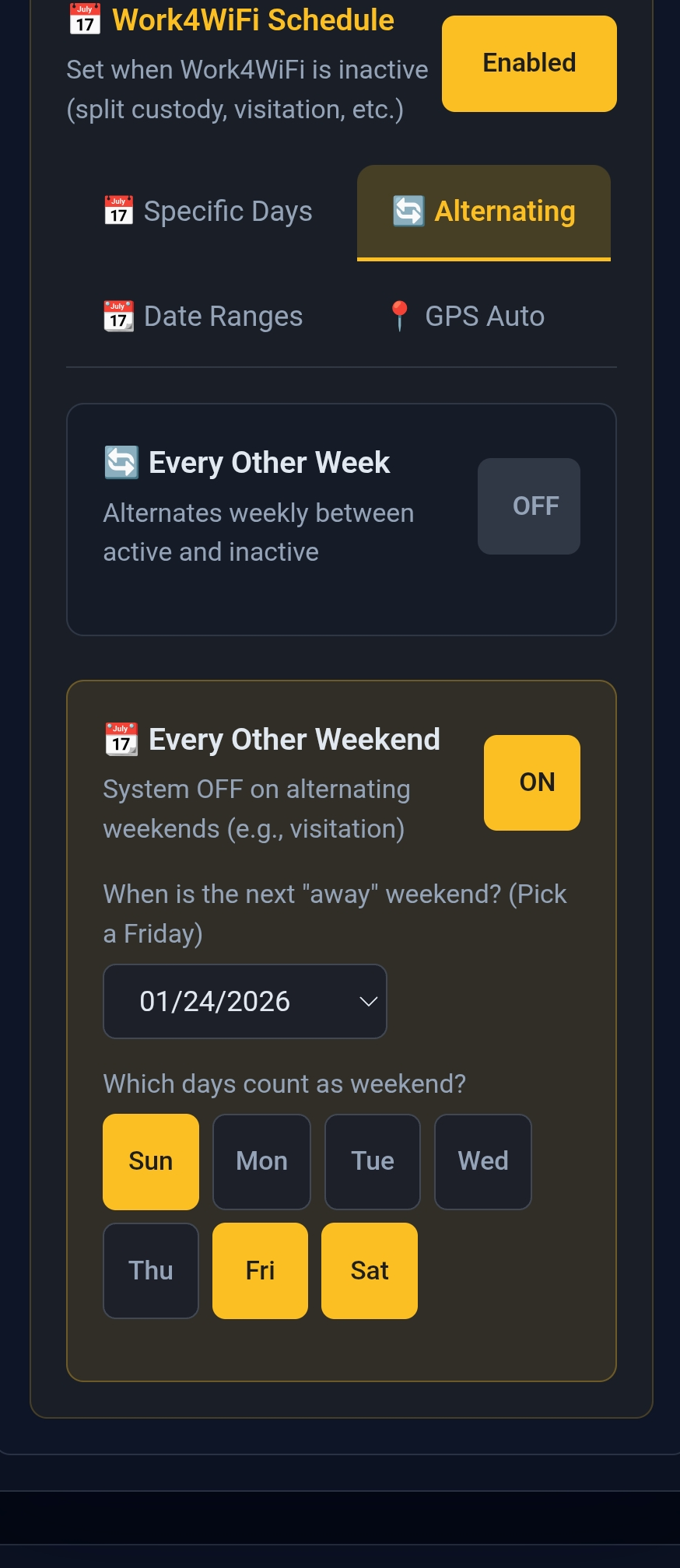
Every Other Weekend
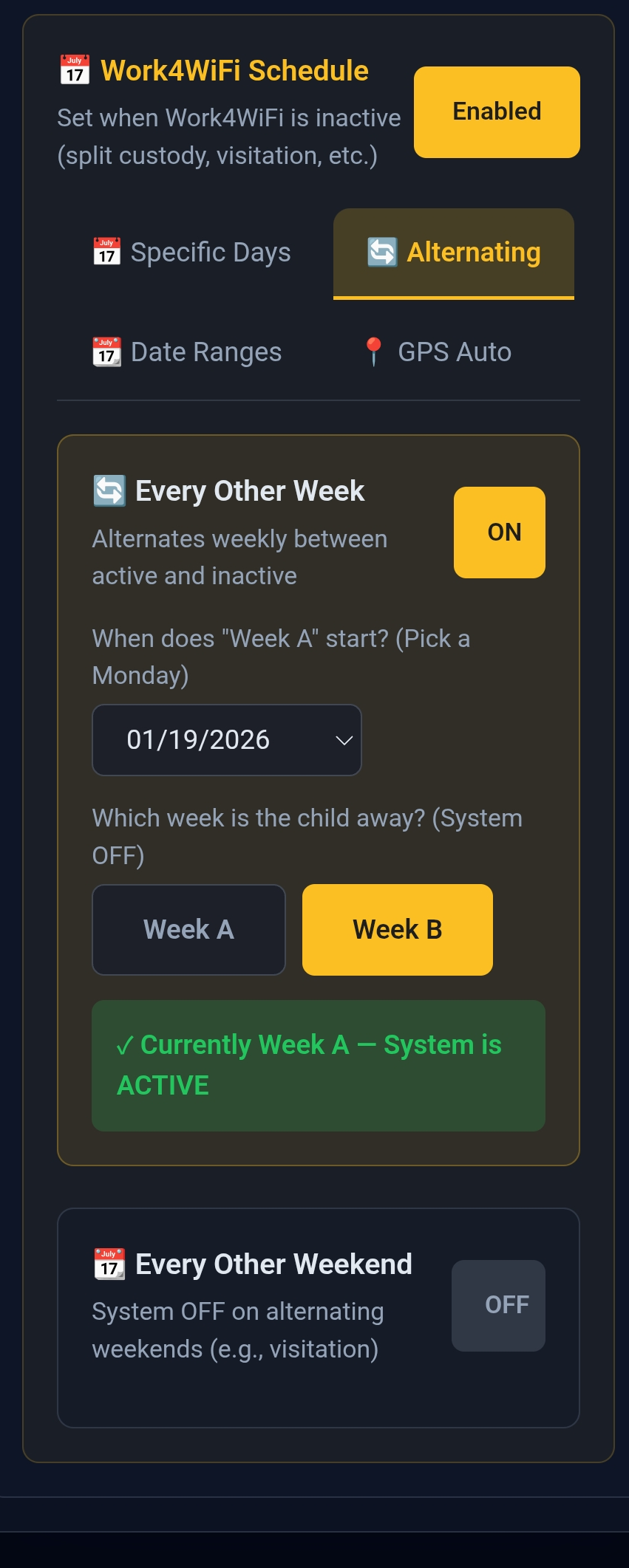
Alternating Weeks
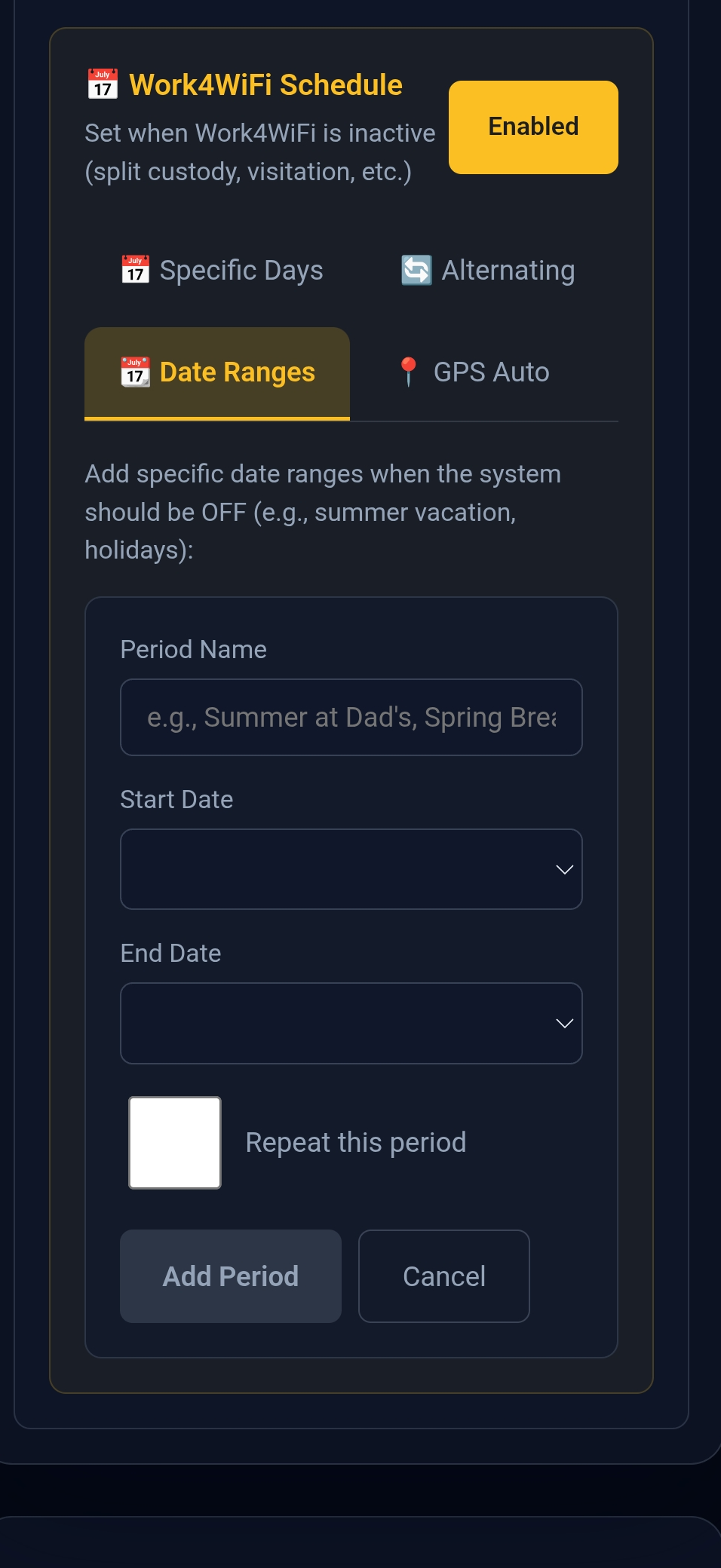
Date Ranges
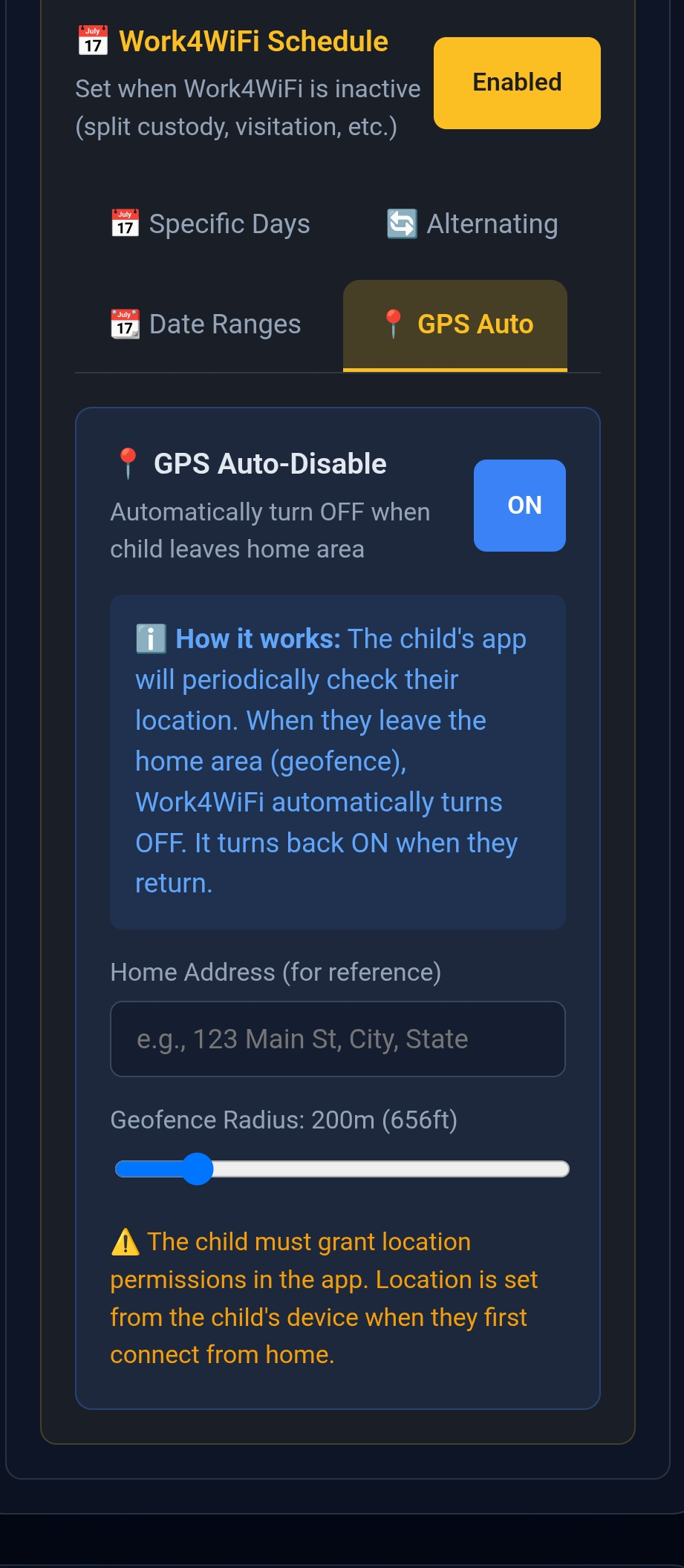
GPS-Based (Premium)
Setting Up a Custody Schedule
- Click on the child's name in Child Stats
- Find the Custody Schedule section
- Enable the schedule
- Select which days blocking should be paused
- Save changes
On custody days, the child's status will show as Away and internet blocking is paused.
⚙️ Family Settings
Click "Settings" to expand family-wide options:
AI Verification Settings
- Confidence threshold: How sure AI must be to auto-approve (higher = stricter)
- Max retries: How many times a child can resubmit before it goes to parent review
- AI auto-reject: Let AI reject clearly wrong submissions, or require all rejections to be manual
WiFi Behavior
- Rollover: Let unused minutes carry over to the next day
- Unlock when daily chores complete: Automatically unblock when all assigned chores are done
Privacy Settings
- Photo retention: How long photos are kept
- AI processing: Enable/disable AI verification
Timezone
Set your family's timezone so daily resets happen at the right time.
📊 Stats & Leaderboard
Child Stats
Expand "Child Stats" to see detailed information for each child:
- Total chores completed
- Current streak
- WiFi time earned this week
- Approval rate
Leaderboard
If you have multiple children, the Leaderboard shows rankings based on:
- Chores completed
- Current streaks
- Total points earned
Great for encouraging friendly sibling competition!