
Child App Installation Guide
Setting up Work4WiFi on your child's Android phone
Before You Start, You'll Need:
- Your child's Android phone (Android 7.0+)
- The Family Code from your parent dashboard
- The child's name and PIN you created
- 5-10 minutes
Download the App
On your child's phone, go to work4wifi.com/download
Tap the Google Play button to open the app listing in the Play Store.
Once Google Play opens, tap Install to download the app.
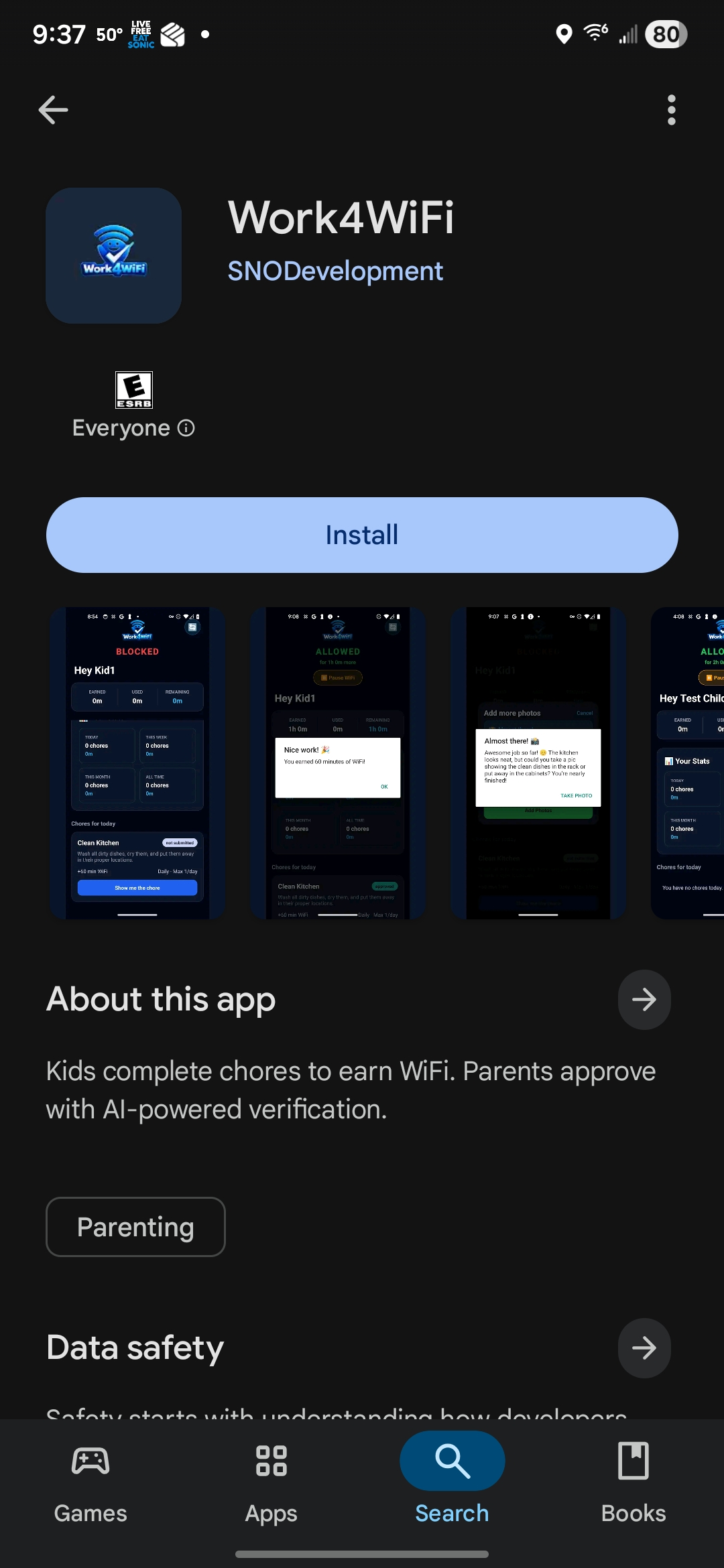
Tap Install in Google Play
Open the App
After the install completes in Google Play, tap Open to launch Work4WiFi.
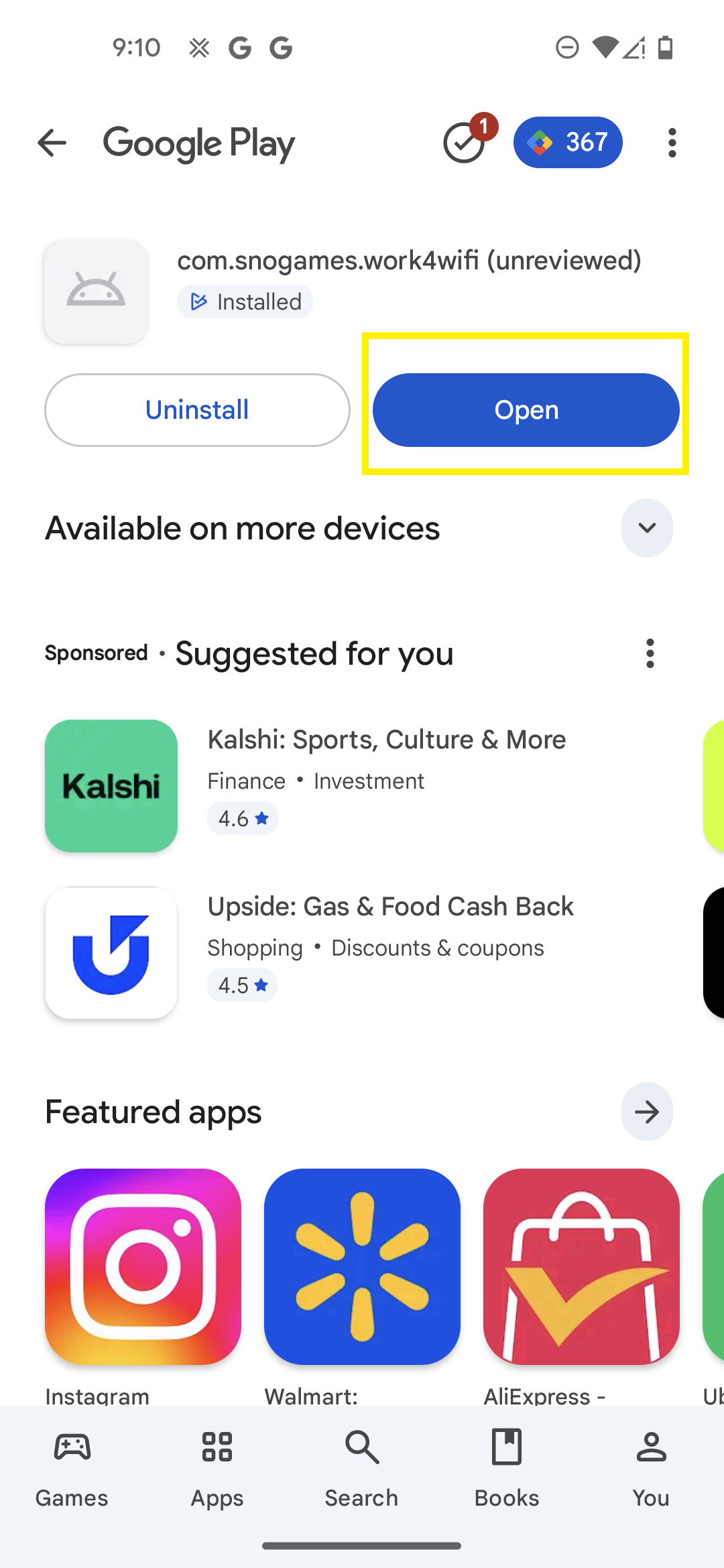
Tap Open to launch the app
Allow VPN Connection
The app uses a local VPN to control internet access. When prompted, tap OK to allow it.
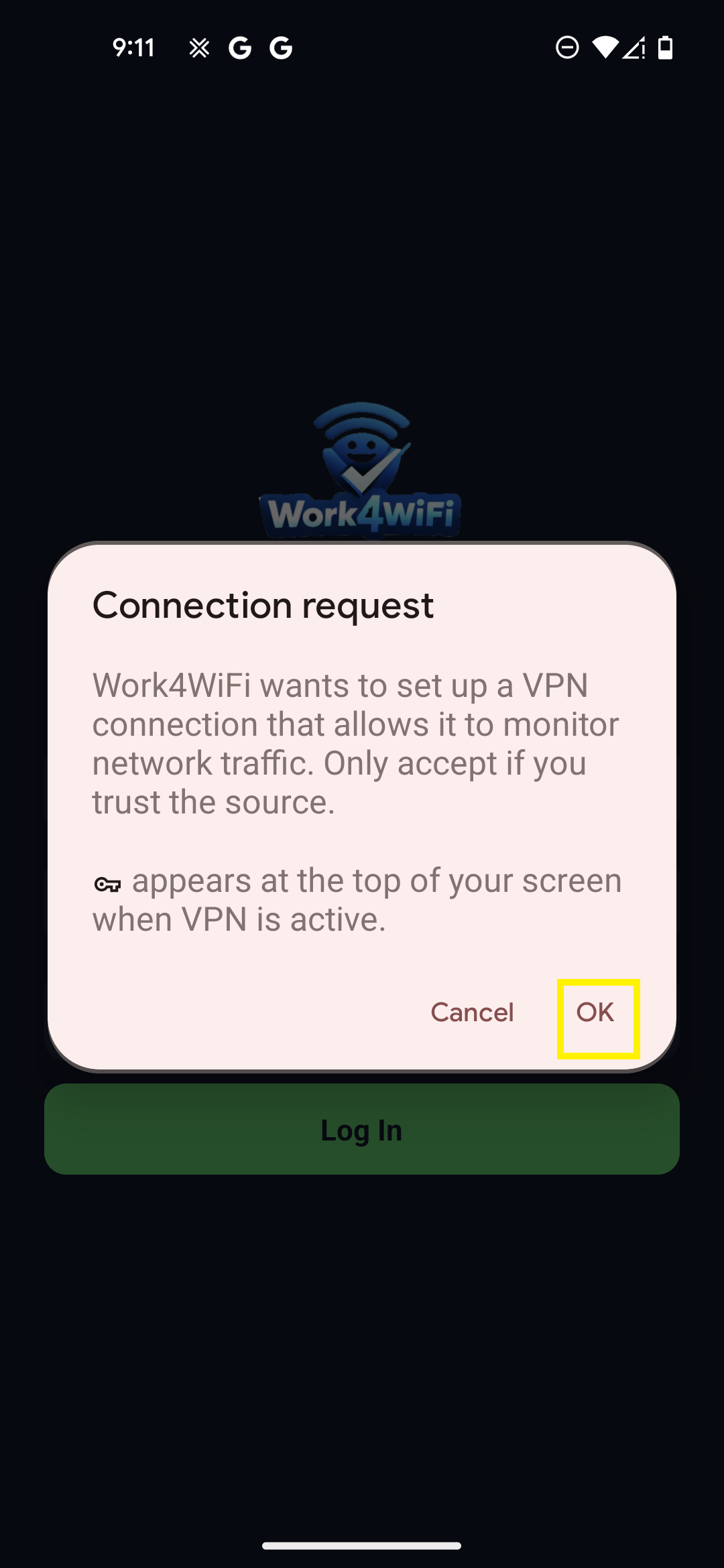
Tap OK to allow the VPN connection
Allow Notifications
Tap Allow to let the app send notifications about chores and WiFi status.
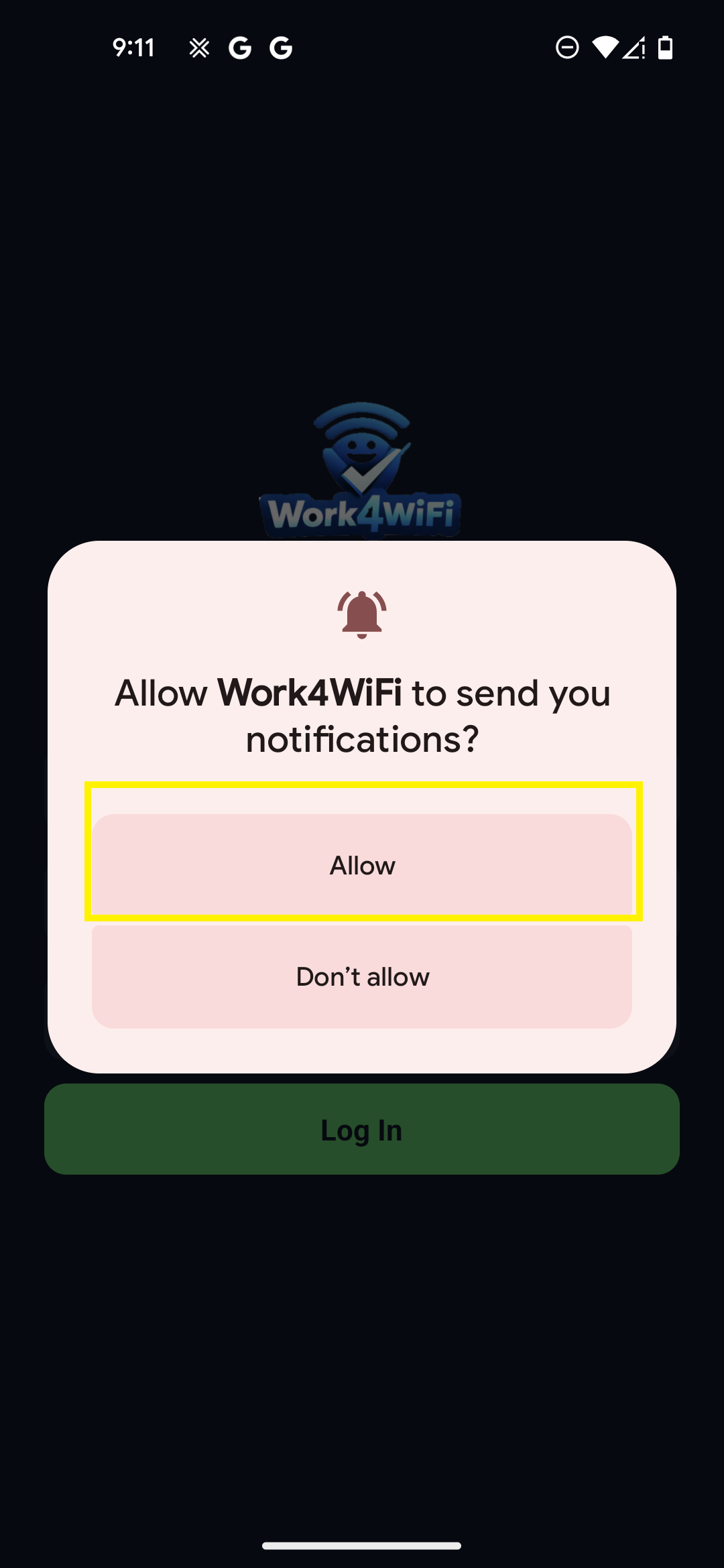
Tap Allow
Enable Device Administrator
This permission prevents your child from uninstalling the app without your permission.
- Tap Enable Protection
- Review the permissions
- Tap Activate this device admin app
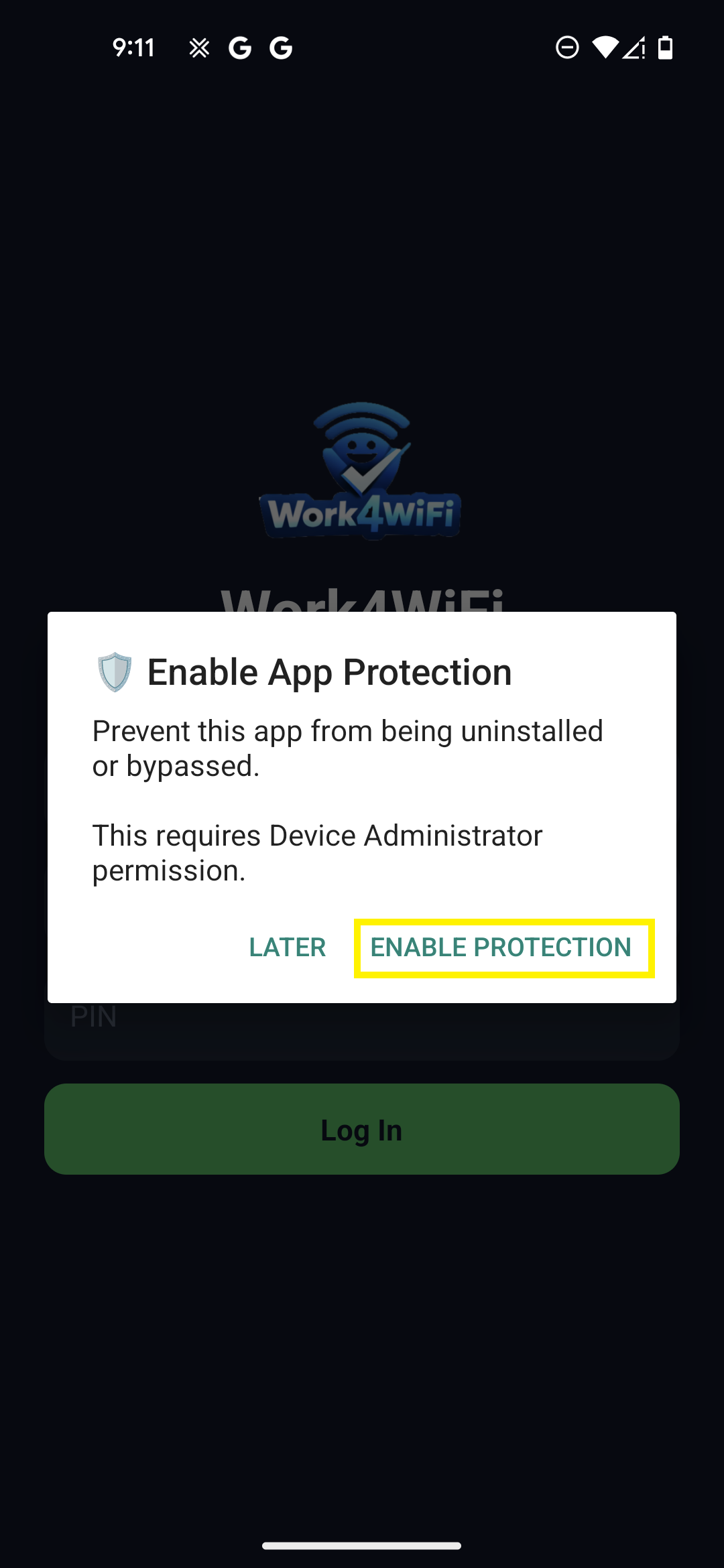
Device Admin permissions
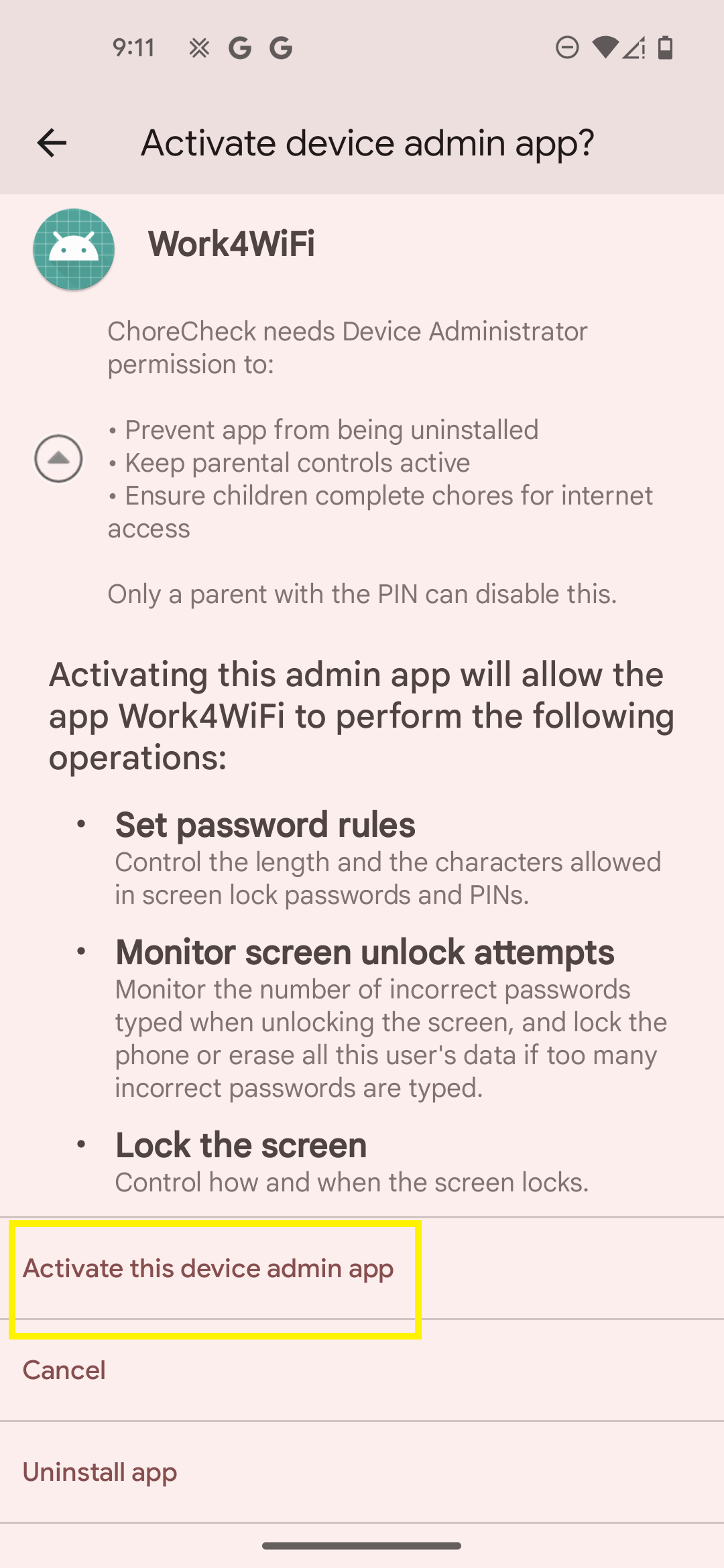
Tap Activate
You'll see a Protection Enabled notification. Tap Ok to continue.
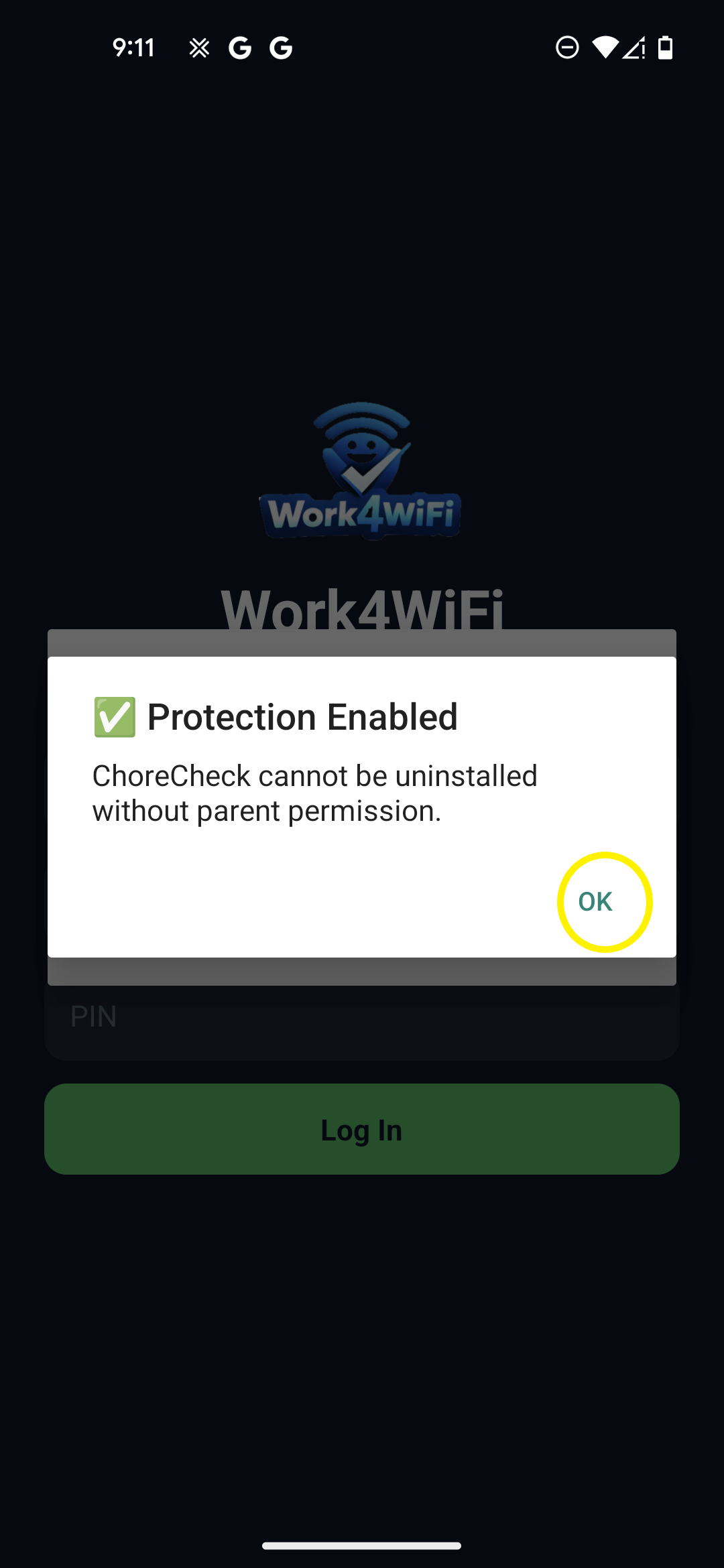
Tap Ok to continue
Allow Display Over Other Apps
This displays a full screen notification when the phone restarts to prevent bypassing the app.
1. Tap Grant Permission on the Permission Required message
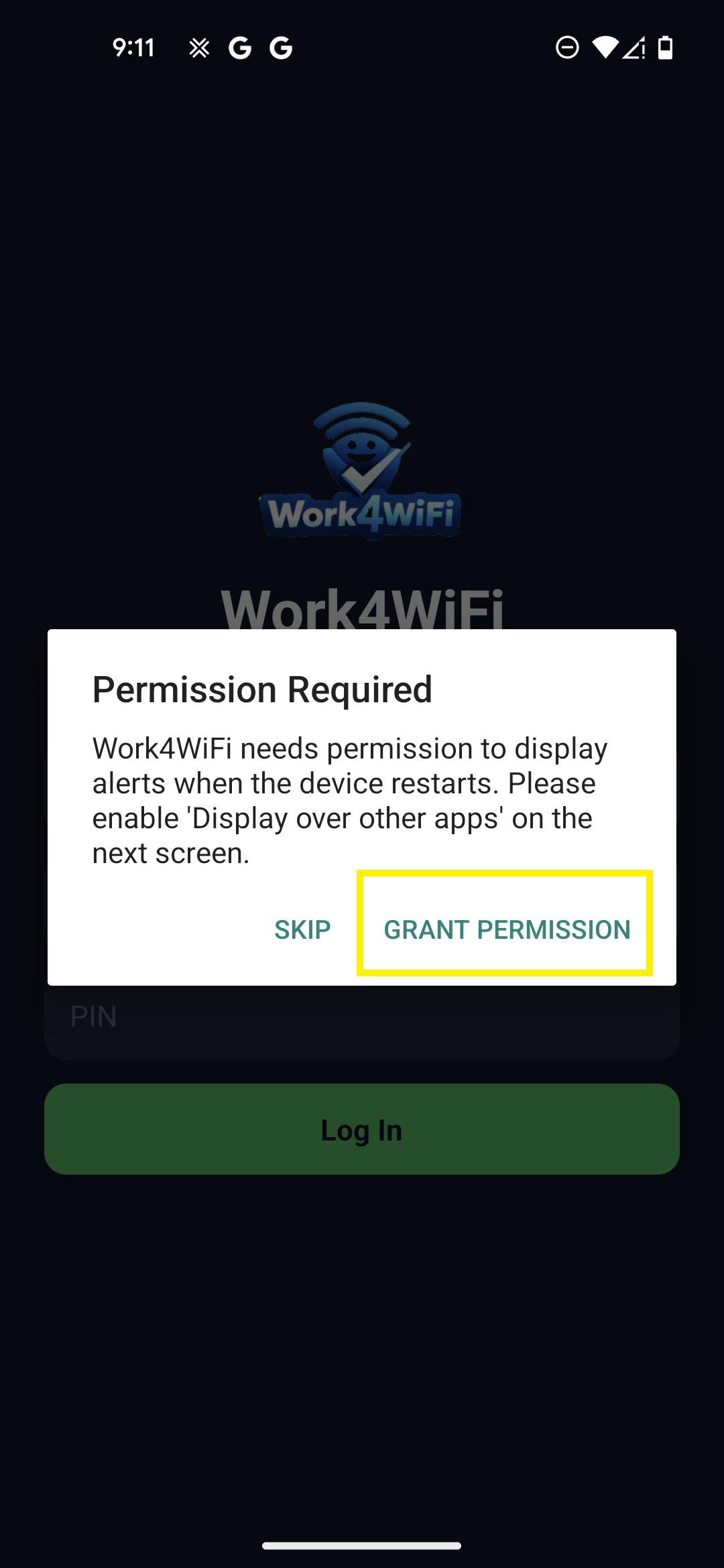
Tap Grant Permission
2. Find Work4WiFi in the list
3. Toggle it ON
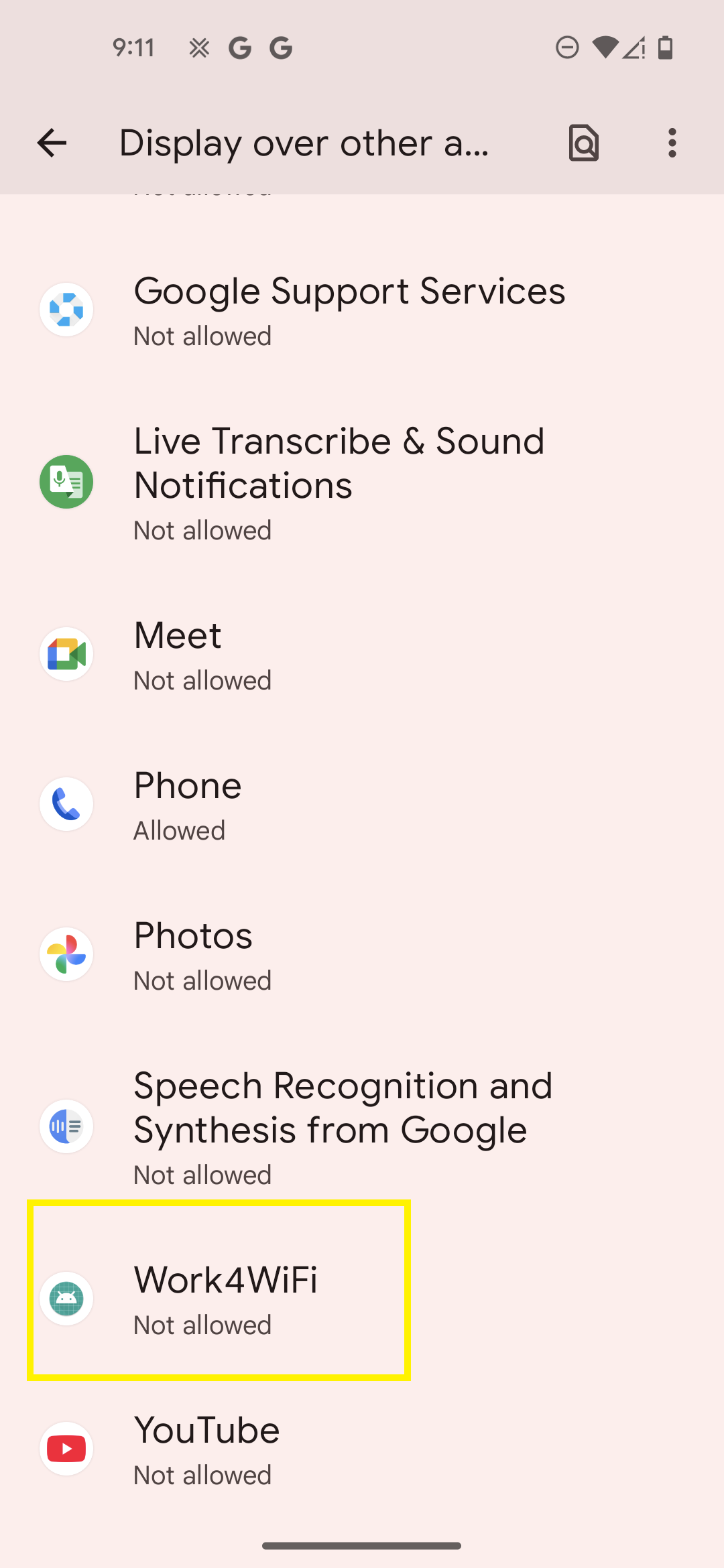
Find Work4WiFi in the list
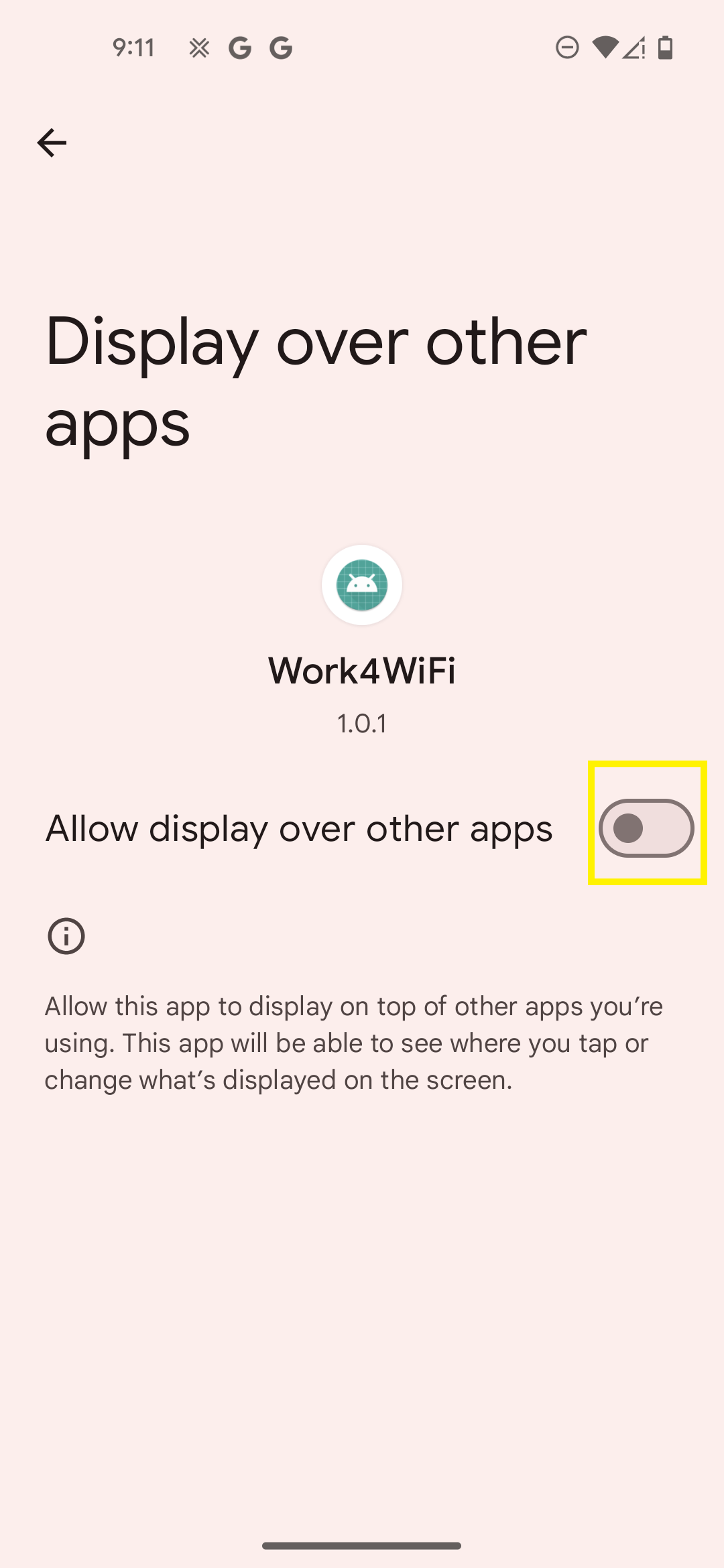
Toggle it ON
4. Tap the back arrow twice to return to the app
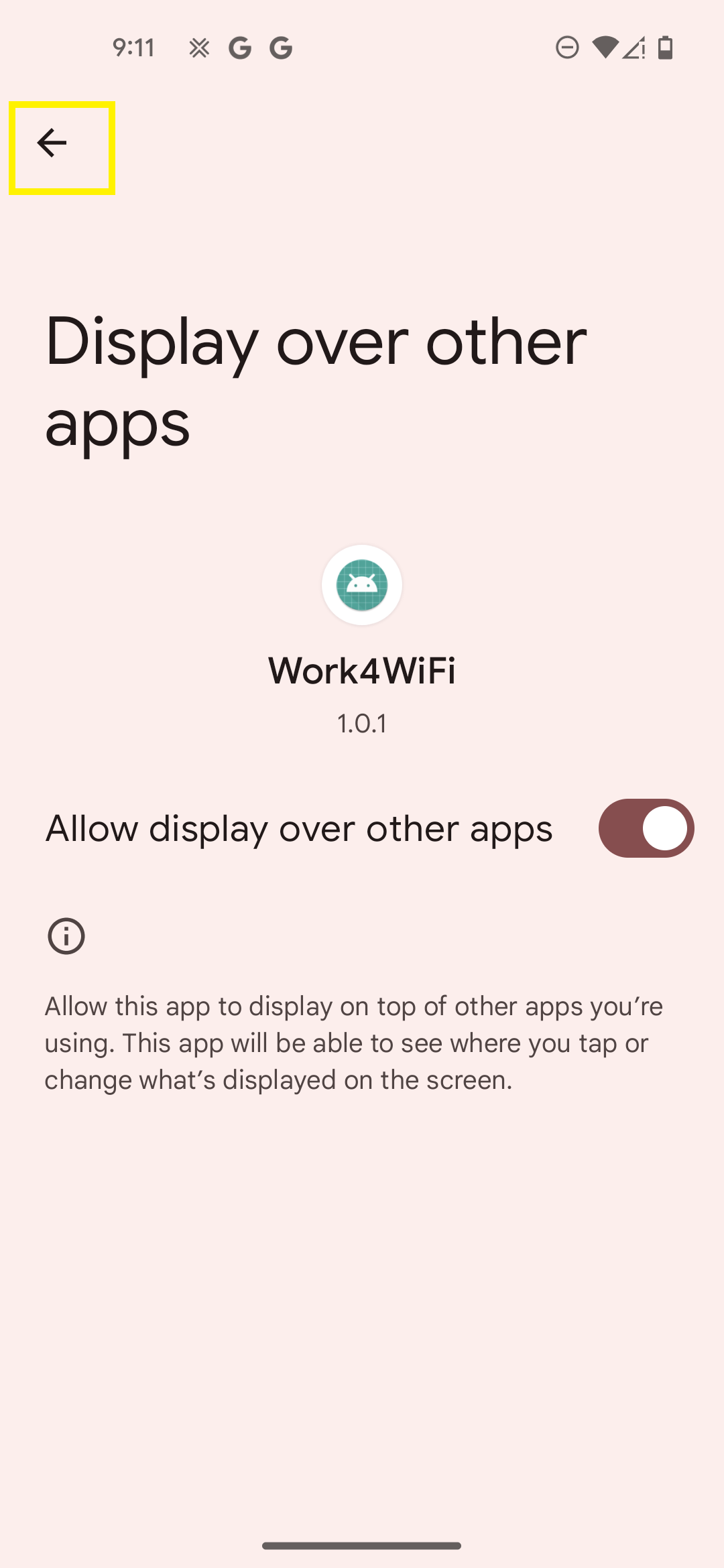
Tap the back arrow to return
Log In
Enter the credentials from your parent dashboard:
- Family Code – shown on your parent dashboard
- Child's Name – exactly as you entered it
- PIN – the PIN you created for this child
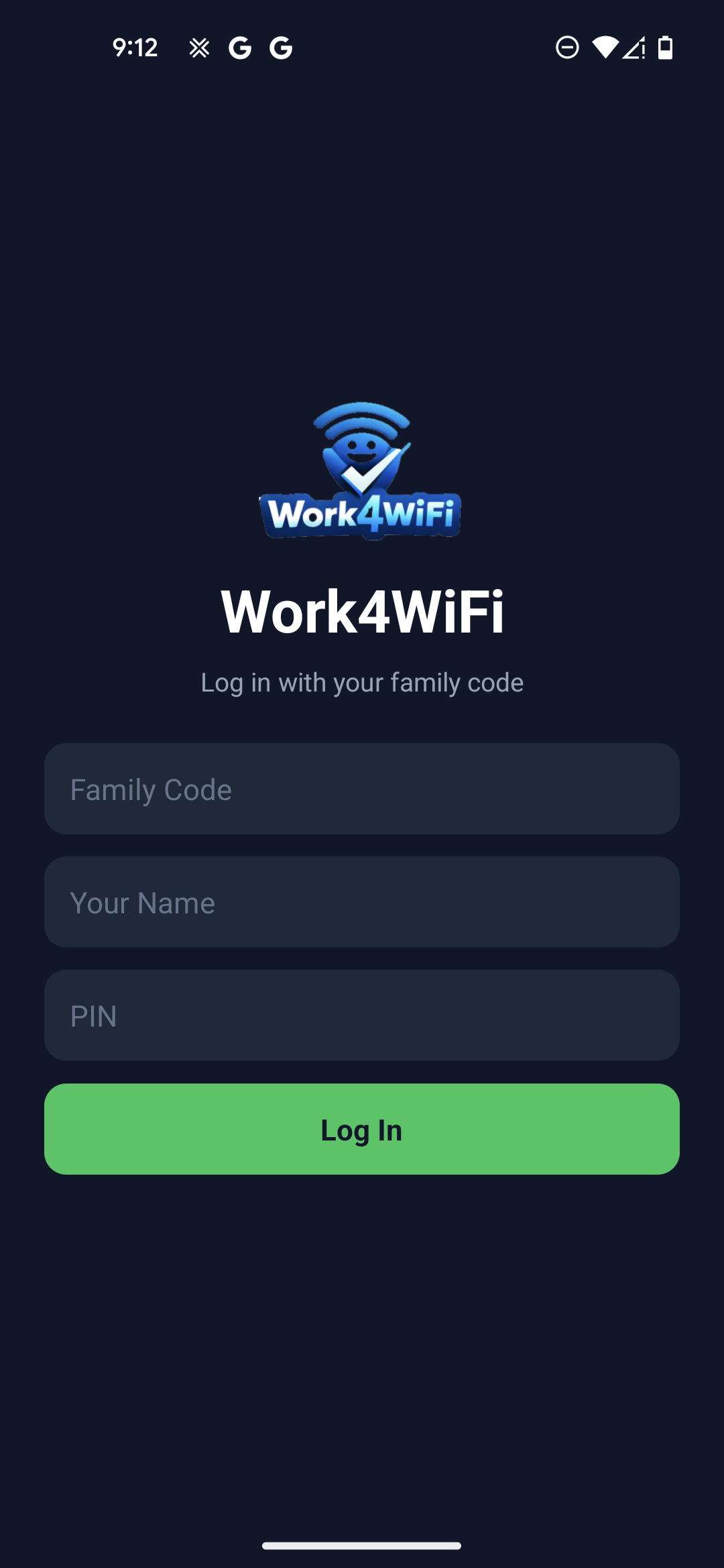
Enter Family Code, Name, and PIN
You're All Set!
Troubleshooting
Getting a 404 or "Page not found" in Google Play?
- Make sure you've switched to your (parent) account in Google Play - not your child's account
- Tap the profile icon in Play Store and verify it shows your email at the top
Can't add your Google account to the phone?
- Some phones with parental controls may restrict adding accounts. Check Family Link or similar apps.
Can't log in to Work4WiFi?
- Make sure you're entering the correct Family Code (not case sensitive)
- Enter the child's name exactly as you created it in the parent dashboard (not case sensitive)
- Double-check the PIN you created for this child
Need more help?
Email us at support@work4wifi.com